Managing Team Members and Time Off
Manage your salon team in Merlua by adding team members, assigning the services they provide, and setting their working availability. You can also record time off so unavailable staff are not shown when clients book appointments.
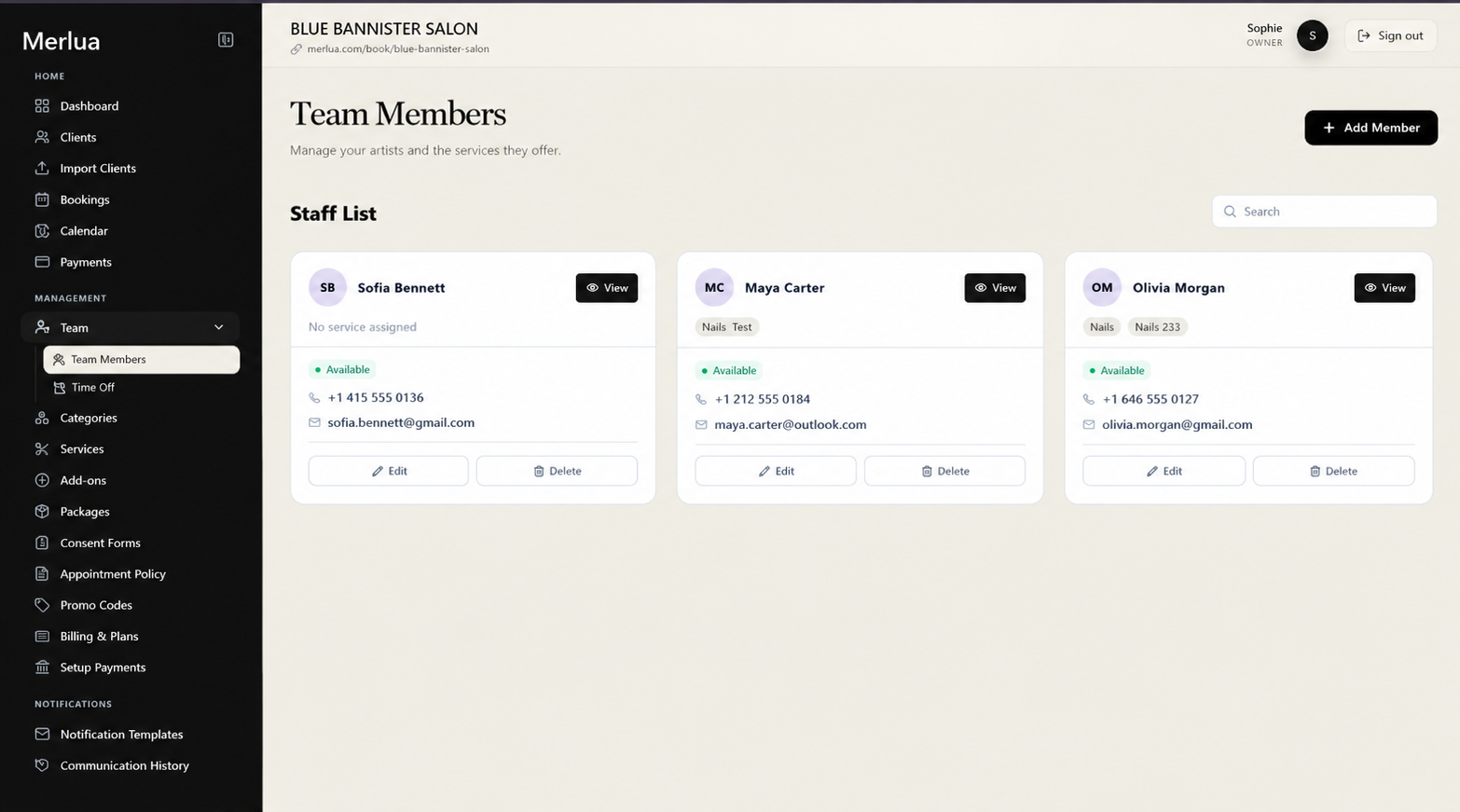
Managing Team Members
The Team Members page lets you manage the staff who provide services at your business. Each team member can have their own services, working hours, and time-off schedule.
1. Add a Team Member
Add each staff member who will provide appointments through Merlua.
Steps:
- Open Team from the main navigation.
- Select Team Members.
- Click Add Team Member.
- Enter the team member's details.
- Save the team member.
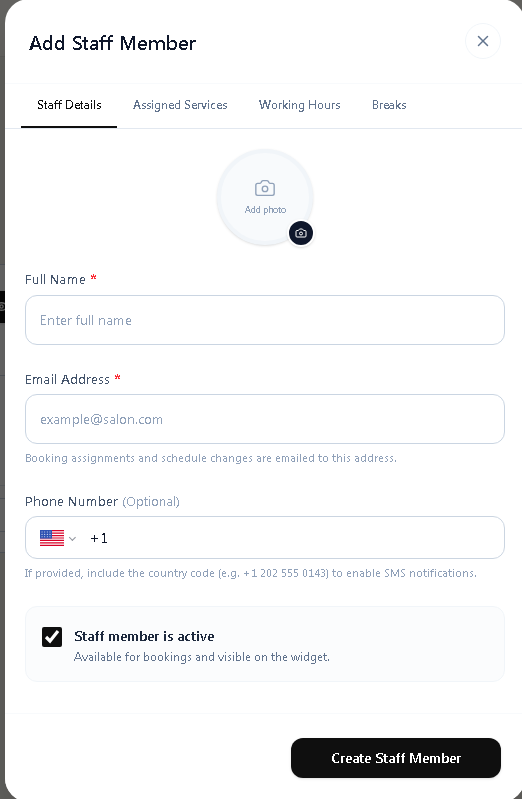
2. Add Team Member Details
Enter the basic information needed to manage the team member.
You can add details such as:
- First and last name
- Email address
- Phone number
- Team member status
Keep the contact information accurate so the team member can be properly managed within your business.
Screenshot: Team member details
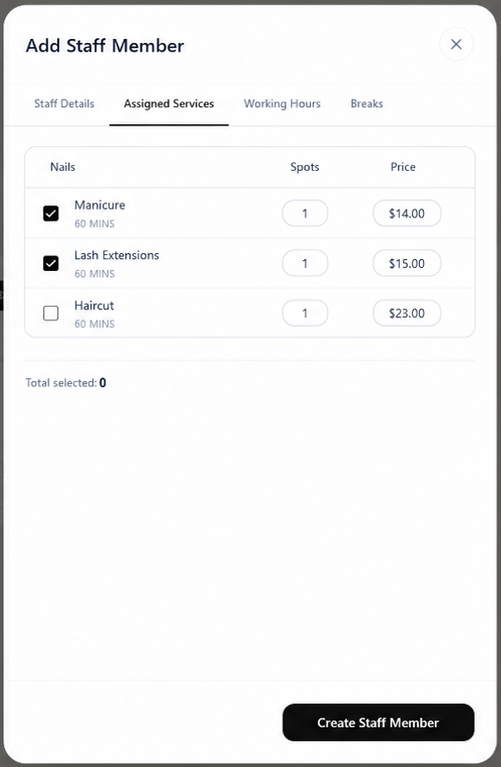
3. Assign Services
After adding a team member, select the services they are available to provide. A service should only be assigned to team members who are able to perform it.
Steps:
- Open the team member's settings.
- Select Assigned Services.
- Select the services they provide.
- Review the selected services.
- Click Save Team Member.
Assigned services determine which appointments can be booked with that team member.
4. Set Working Hours
Set the days and hours when the team member is available for appointments.
Steps:
- Open the team member's settings.
- Select Working Hours.
- Set their available days.
- Set the start and end times.
- Save the changes.
Accurate working hours help Merlua show the correct staff availability when creating or booking appointments.
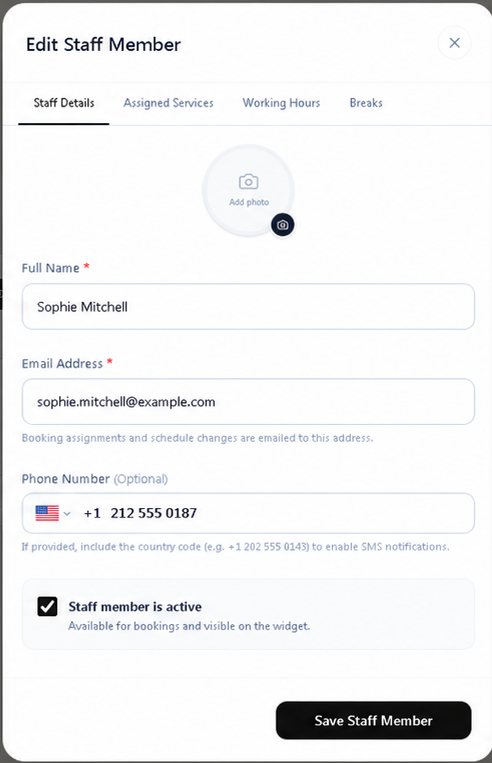
5. Edit a Team Member
You can update a team member whenever their information, services, or availability changes.
Steps:
- Open Team Members.
- Find the team member you want to update.
- Click Edit.
- Update the required information.
- Save the changes.
Managing Time Off
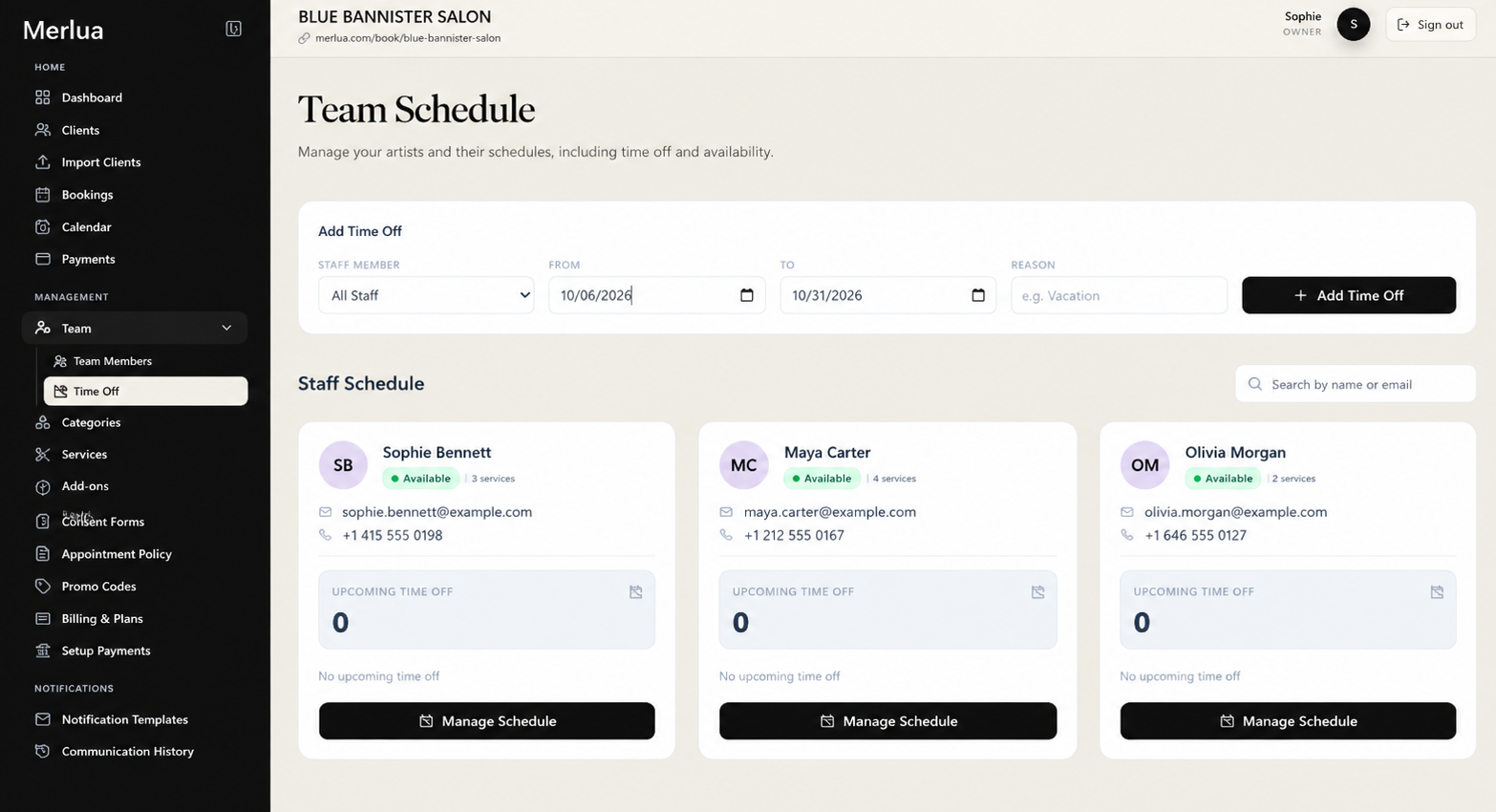
Time off allows you to record periods when a team member is unavailable. Adding time off helps prevent appointments from being scheduled during their unavailable period.
1. Add Time Off
Add time off when a team member will be unavailable for appointments.
Steps:
- Open Team and select Time Off, or open the team member's settings.
- Click Add Time Off.
- Select the team member.
- Select the date or date range.
- Enter the unavailable hours if required.
- Save the time-off entry.
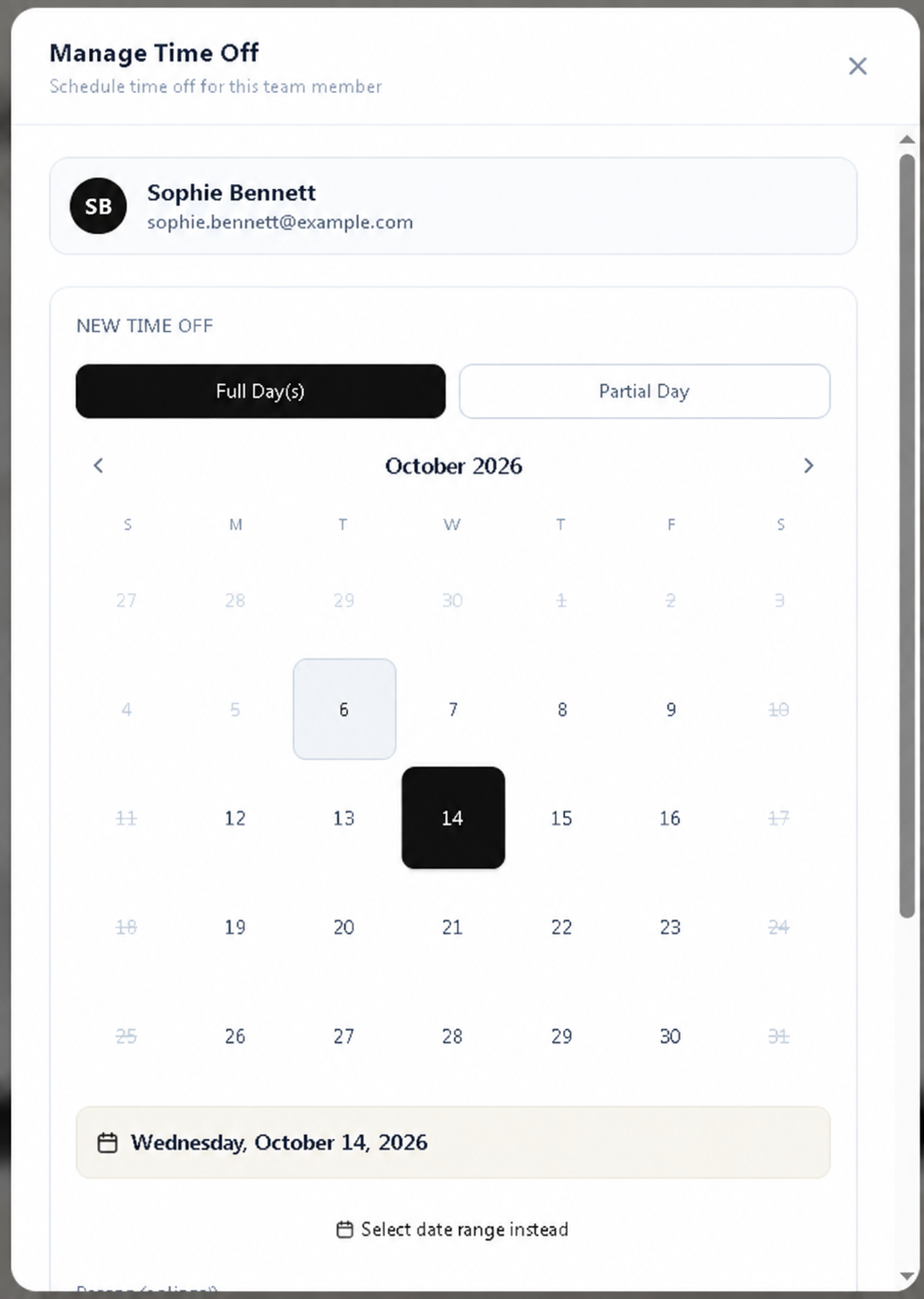
2. Manage Existing Time Off
Review scheduled time off to keep staff availability accurate.
You can:
- View upcoming time off
- Edit a time-off entry
- Update the date or time
- Remove time off that is no longer required
3. How Time Off Affects Bookings
When a team member has scheduled time off, their unavailable period should not be offered as an available appointment time. This helps prevent bookings from being created when the team member is not working.
Before adding or changing time off, make sure the dates and hours are correct so your booking availability remains accurate.
Tips for Managing Your Team
- Add every team member who will provide appointments.
- Assign only the services each team member can provide.
- Keep working hours up to date.
- Add planned holidays, leave, and other unavailable periods as time off.
- Review staff availability whenever their schedule changes.