Managing Categories, Services, and Add-ons
Organize your salon offerings with Merlua. Create categories, manage services, and add optional extras to give clients a simple and flexible booking experience.
Screenshot: Categories, Services, and Add-ons overview
Managing Categories
Categories help you organize your services into clear groups, making it easier for clients to find the treatments they need.
1. View Your Categories
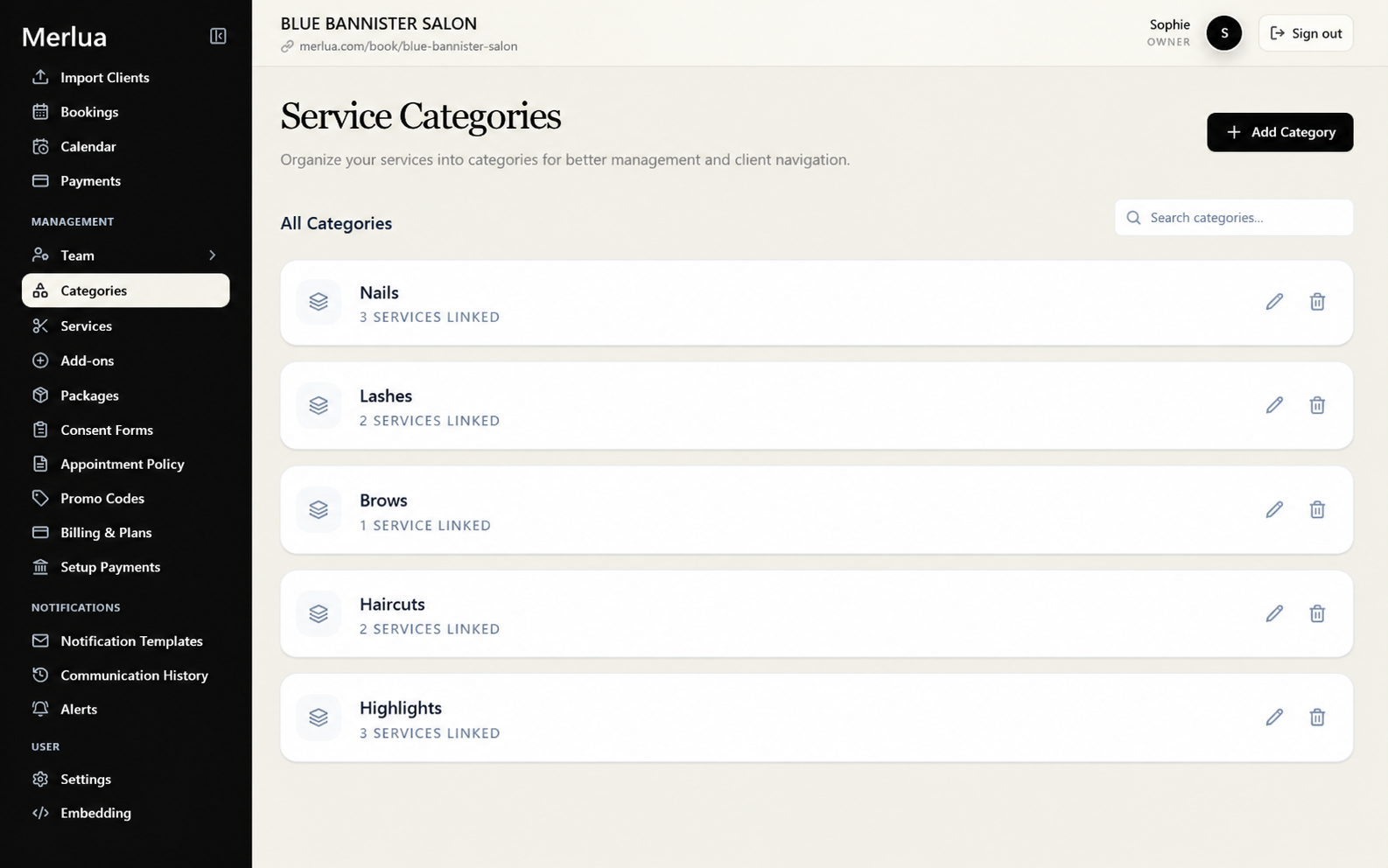
The Categories page allows you to manage all service groups in your business.
You can view:
- Category name
- Number of services included
- Category status
- Available actions
2. Create a New Category
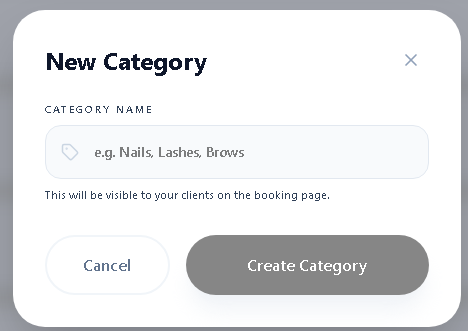
Create categories to group similar services together.
Steps:
- Click Add Category
- Enter the category name
- Add an image (optional)
- Save the category
Examples:
- Nails
- Lashes
- Hair Services
- Brows
- Skin Treatments
3. Manage Categories
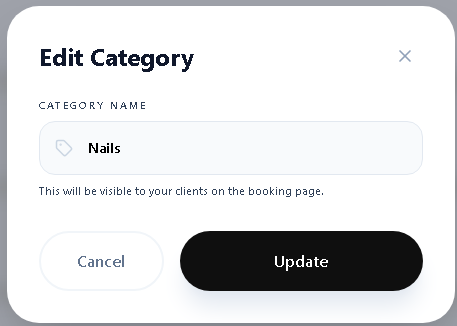
You can update categories whenever your service offerings change.
You can:
- Edit category details
- Update category images
- View connected services
- Remove unused categories
Managing Services
Services are the treatments your clients can book. Merlua allows you to create services, set pricing, manage duration, and control booking availability.
1. View Your Services
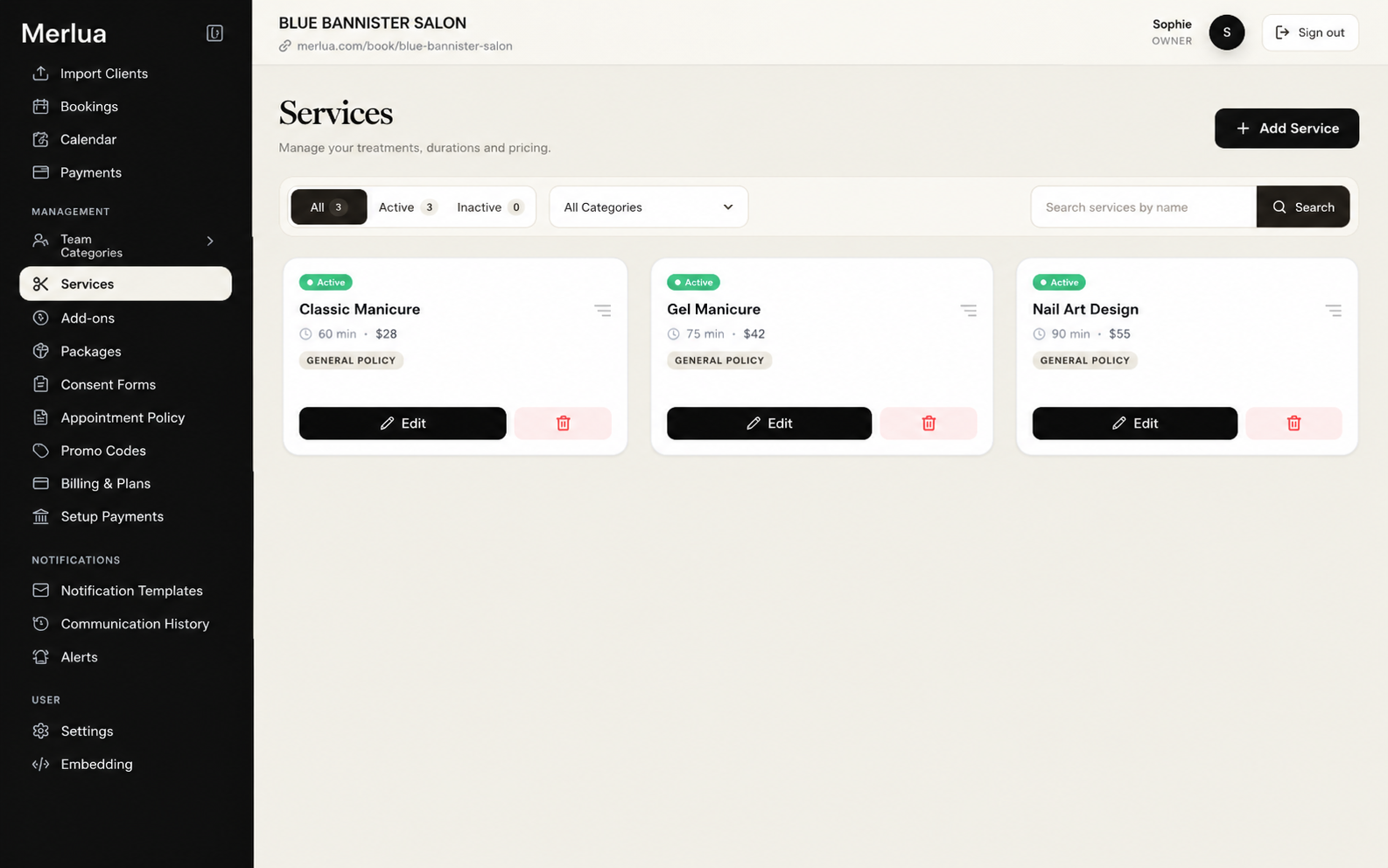
The Services page shows all treatments available for your salon.
You can view:
- Service name
- Category
- Duration
- Price
- Deposit requirements
- Service status
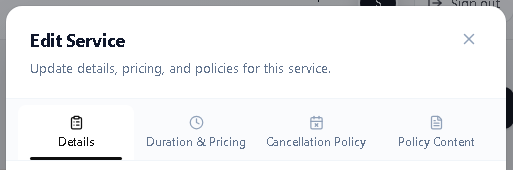
2. Create a New Service
Add a service to make it available for client bookings.
Steps:
- Click Add Service
- Add the service name
- Select a category
- Set duration and pricing
- Add deposit requirements if needed
- Save the service
Screenshot: Add service form
3. Set Service Duration and Pricing
Configure the details that determine how your service appears during booking.
You can manage:
- Service duration
- Service price
- Buffer time before or after appointments
- Deposit requirements
Screenshot: Duration and pricing settings
4. Assign Services to Team Members
Choose which team members can provide each service.
You can assign services based on:
- Staff skills
- Availability
- Business requirements
Screenshot: Service assignment section
5. Manage Service Visibility
Control whether services are available for clients to book.
You can:
- Enable services for booking
- Hide unavailable services
- Update service information
Screenshot: Service visibility settings
Managing Add-ons
Add-ons allow clients to include additional treatments or extras along with their selected service.
Screenshot: Add-ons page overview
1. View Your Add-ons
The Add-ons page helps you manage additional options available during booking.
You can view:
- Add-on name
- Price
- Duration
- Connected services
- Status
Screenshot: Add-ons list
2. Create a New Add-on
Create optional extras that clients can select with their main service.
Steps:
- Click Add Add-on
- Enter the add-on name
- Set the price
- Add duration if required
- Connect it to available services
- Save the add-on
Examples:
- Nail Art
- Deep Conditioning Treatment
- Extra Styling
- Special Care Treatment
Screenshot: Add-on creation form
3. Manage Add-ons
Update add-ons whenever your services or pricing change.
You can:
- Edit add-on details
- Change pricing
- Enable or disable add-ons
- Update connected services
Screenshot: Add-on settings
Tips for Managing Services
- Keep categories clear so clients can easily find services.
- Use accurate service durations to prevent scheduling conflicts.
- Keep pricing updated whenever services change.
- Create relevant add-ons to improve the booking experience.